


首先去rclone官网下载Windows的安装包 rclone官网
下载你自己电脑对应的架构即可,我这里下载 Intel/AMD - 64 Bit Windows安装包。
1. 获取Token
将你刚刚下好的安装包解压,解压后进入文件夹里 在文件路径地址里直接输入cmd即可快速打开cmd进入rclone的文件夹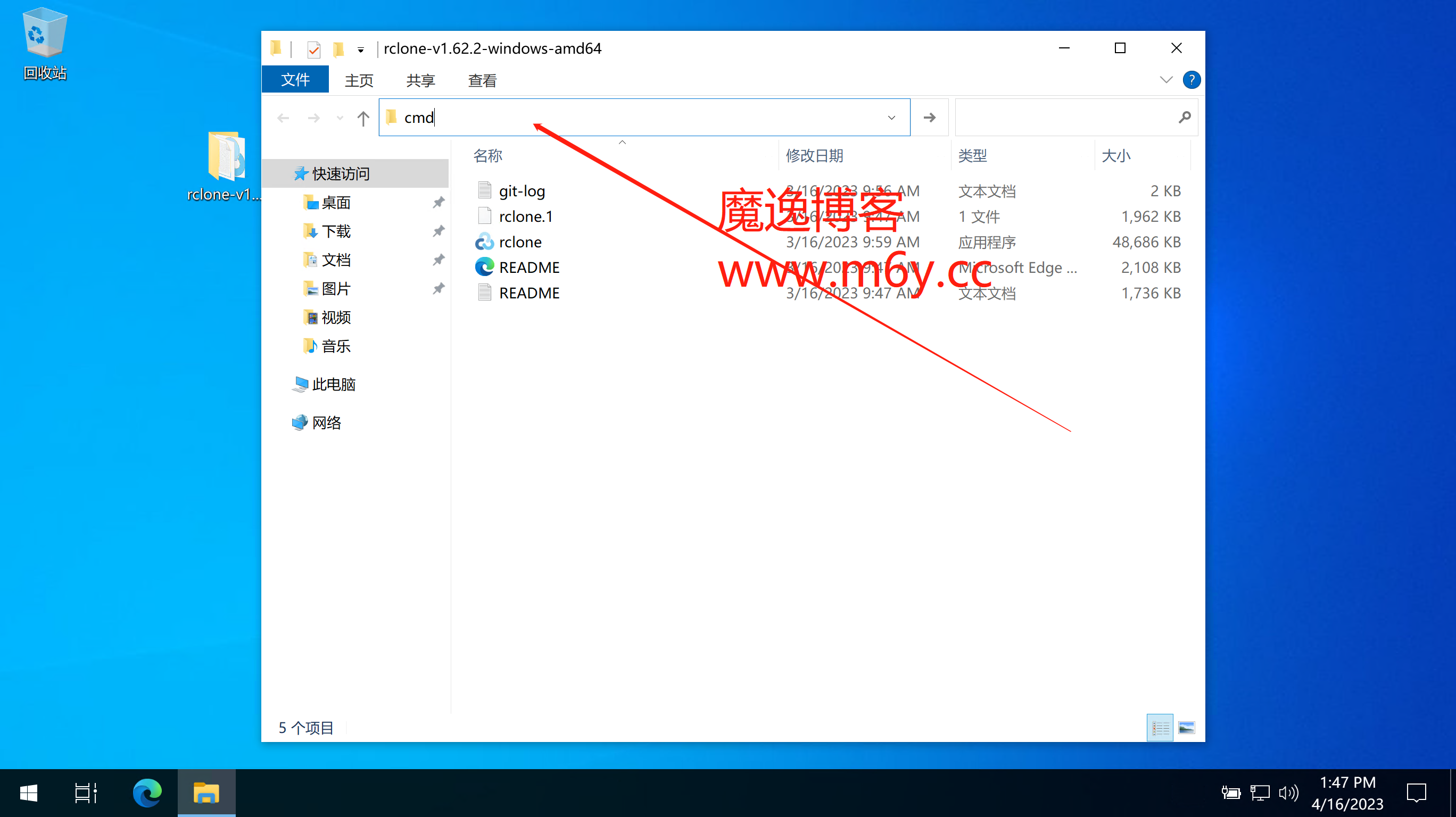
接着输入如下命令
rclone.exe authorize "onedrive"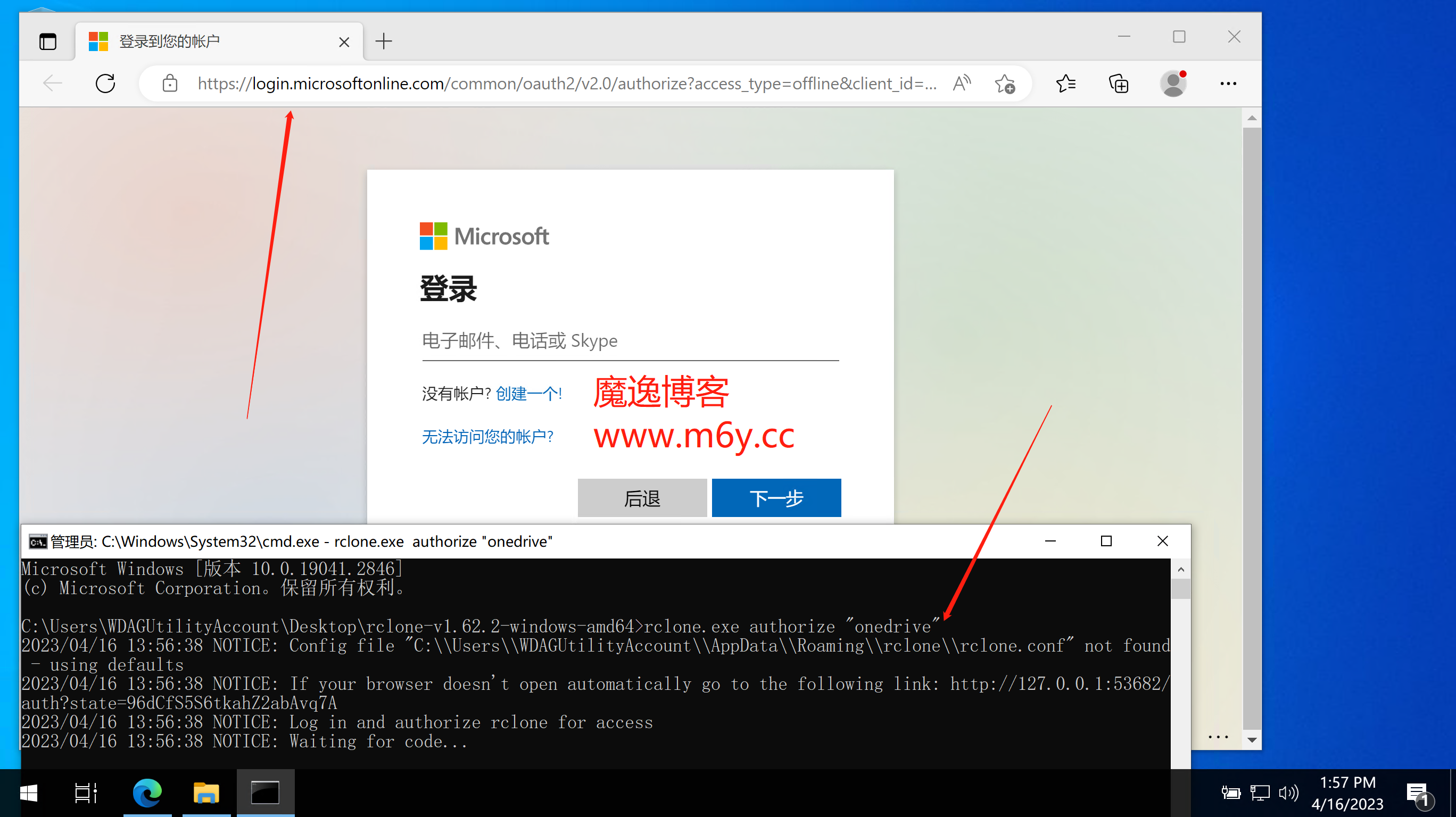
就会弹出微软账号登陆,登陆你自己的账号即可
ps:如果输入命令后 没有弹出浏览器,手动打开cmd中的链接 http://127.0.0.1:53682/auth?state=96dCfS5S6tkahZ2abAvq7A(不要照搬我的,每次生成的url都是不一样的)粘贴到浏览器打开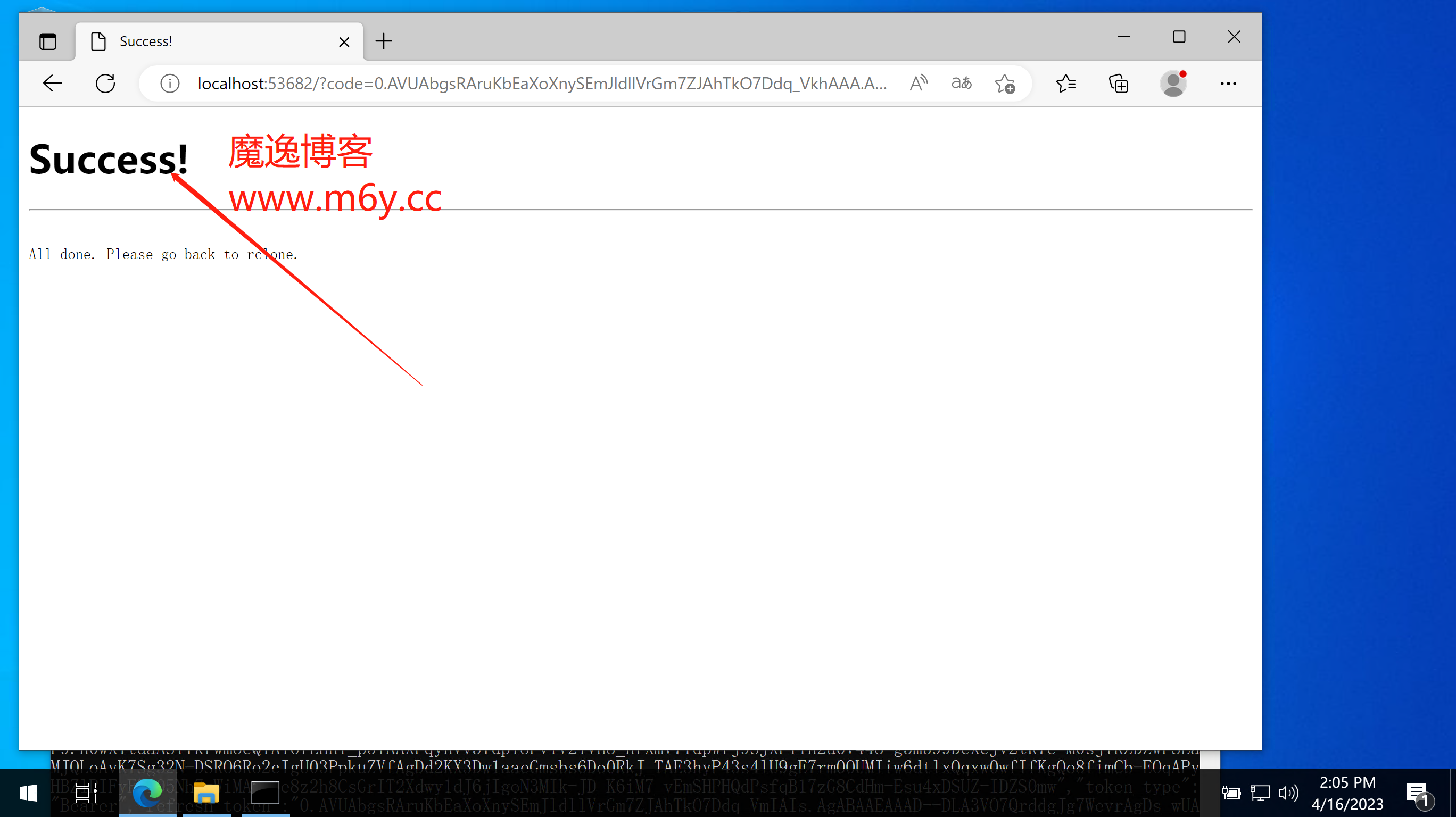
会提示授权 允许即可,浏览器返回Success! 表示成功获取到Token,返回cmd中查看
整个{}都是Token(包括括号),全部复制出来!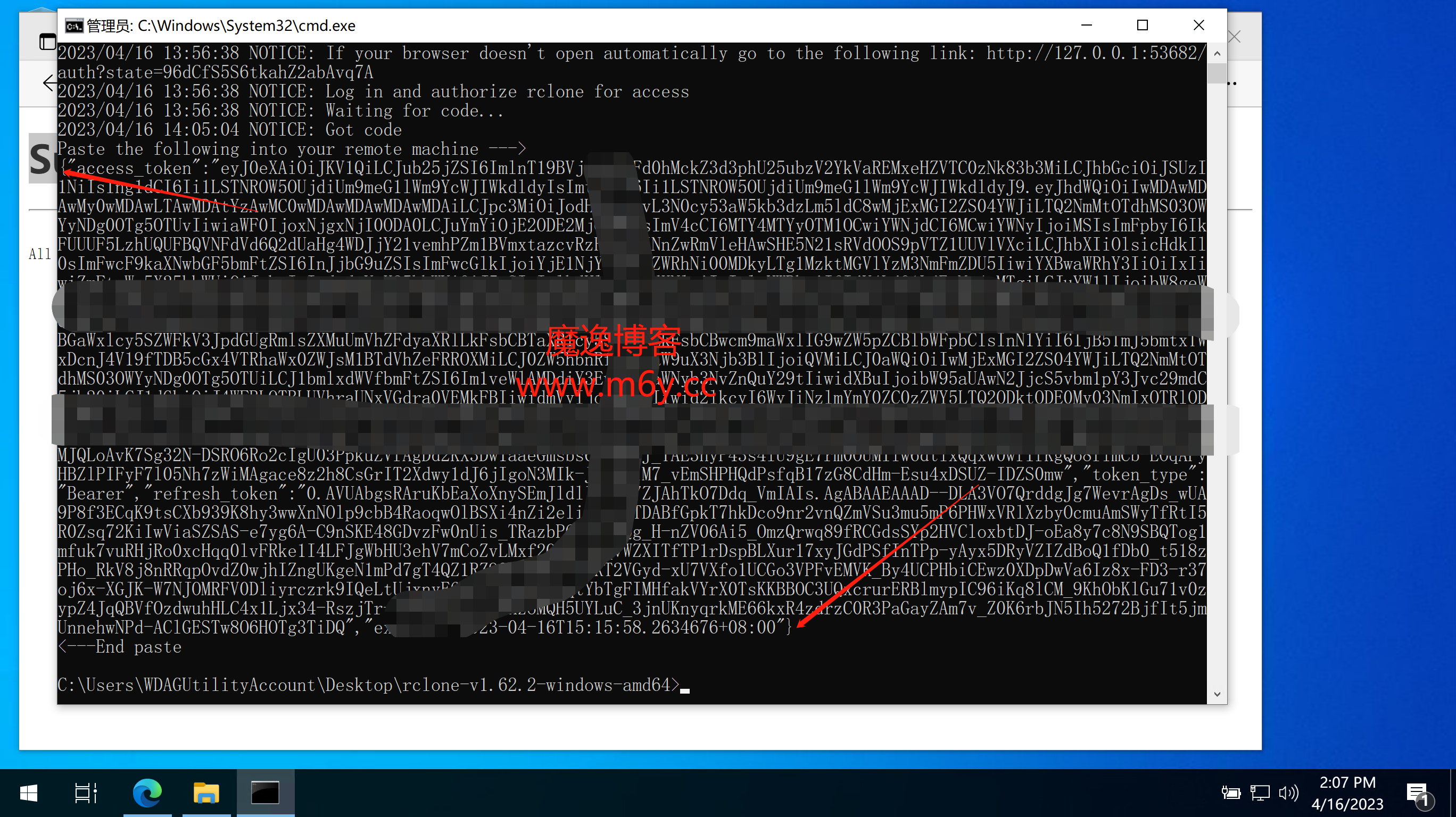
2. 在Linux上安装Rclone
官网提供了一键脚本
curl https://rclone.org/install.sh | bash3. 配置rclone
安装完成了以后执行 rclone config
[[email protected]]# rclone config
No remotes found, make a new one?
n) New remote
s) Set configuration password
q) Quit config
n/s/q>
我们还没有添加任何网盘的 这里输入n代表New remote
然后会让你备注个名字 随便取个名字,我这里就用onedrive
n/s/q> n

Enter name for new remote.
name> onedrive

Option Storage.
Type of storage to configure.
Choose a number from below, or type in your own value.
 1 / 1Fichier
   \ (fichier)
 2 / Akamai NetStorage
   \ (netstorage)
 3 / Alias for an existing remote
   \ (alias)
 4 / Amazon Drive
   \ (amazon cloud drive)
 5 / Amazon S3 Compliant Storage Providers including AWS, Alibaba, Ceph, China Mobile, Cloudflare, ArvanCloud, DigitalOcean, Dreamhost, Huawei OBS, IBM COS, IDrive e2, IONOS Cloud, Liara, Lyve Cloud, Minio, Netease, RackCorp, Scaleway, SeaweedFS, StackPath, Storj, Tencent COS, Qiniu and Wasabi
   \ (s3)
 6 / Backblaze B2
   \ (b2)
 7 / Better checksums for other remotes
   \ (hasher)
 8 / Box
   \ (box)
 9 / Cache a remote
   \ (cache)
10 / Citrix Sharefile
   \ (sharefile)
11 / Combine several remotes into one
   \ (combine)
12 / Compress a remote
   \ (compress)
13 / Dropbox
   \ (dropbox)
14 / Encrypt/Decrypt a remote
   \ (crypt)
15 / Enterprise File Fabric
   \ (filefabric)
16 / FTP
   \ (ftp)
17 / Google Cloud Storage (this is not Google Drive)
   \ (google cloud storage)
18 / Google Drive
   \ (drive)
19 / Google Photos
   \ (google photos)
20 / HTTP
   \ (http)
21 / Hadoop distributed file system
   \ (hdfs)
22 / HiDrive
   \ (hidrive)
23 / In memory object storage system.
   \ (memory)
24 / Internet Archive
   \ (internetarchive)
25 / Jottacloud
   \ (jottacloud)
26 / Koofr, Digi Storage and other Koofr-compatible storage providers
   \ (koofr)
27 / Local Disk
   \ (local)
28 / Mail.ru Cloud
   \ (mailru)
29 / Mega
   \ (mega)
30 / Microsoft Azure Blob Storage
   \ (azureblob)
31 / Microsoft OneDrive
   \ (onedrive)
32 / OpenDrive
   \ (opendrive)
33 / OpenStack Swift (Rackspace Cloud Files, Memset Memstore, OVH)
   \ (swift)
34 / Oracle Cloud Infrastructure Object Storage
   \ (oracleobjectstorage)
35 / Pcloud
   \ (pcloud)
36 / Put.io
   \ (putio)
37 / QingCloud Object Storage
   \ (qingstor)
38 / SMB / CIFS
   \ (smb)
39 / SSH/SFTP
   \ (sftp)
40 / Sia Decentralized Cloud
   \ (sia)
41 / Storj Decentralized Cloud Storage
   \ (storj)
42 / Sugarsync
   \ (sugarsync)
43 / Transparently chunk/split large files
   \ (chunker)
44 / Union merges the contents of several upstream fs
   \ (union)
45 / Uptobox
   \ (uptobox)
46 / WebDAV
   \ (webdav)
47 / Yandex Disk
   \ (yandex)
48 / Zoho
   \ (zoho)
49 / premiumize.me
   \ (premiumizeme)
50 / seafile
   \ (seafile)
Storage>
我们是onedrive 这里输入31即可
client_id,client_secret留空直接回车
后面会询问你的位置,选择你onedrive的实际位置即可,我这里选择1,Global全球
config_token 粘贴刚刚在电脑上获取的Token
Storage> 31

Option client_id.
OAuth Client Id.
Leave blank normally.
Enter a value. Press Enter to leave empty.
client_id>

Option client_secret.
OAuth Client Secret.
Leave blank normally.
Enter a value. Press Enter to leave empty.
client_secret>

Option region.
Choose national cloud region for OneDrive.
Choose a number from below, or type in your own string value.
Press Enter for the default (global).
 1 / Microsoft Cloud Global
   \ (global)
 2 / Microsoft Cloud for US Government
   \ (us)
 3 / Microsoft Cloud Germany
   \ (de)
 4 / Azure and Office 365 operated by Vnet Group in China
   \ (cn)
region> 1

Edit advanced config?
y) Yes
n) No (default)
y/n> n

Use web browser to automatically authenticate rclone with remote?
 * Say Y if the machine running rclone has a web browser you can use
 * Say N if running rclone on a (remote) machine without web browser access
If not sure try Y. If Y failed, try N.

y) Yes (default)
n) No
y/n> n

Option config_token.
For this to work, you will need rclone available on a machine that has
a web browser available.
For more help and alternate methods see: https://rclone.org/remote_setup/
Execute the following on the machine with the web browser (same rclone
version recommended):
        rclone authorize "onedrive"
Then paste the result.
Enter a value.
config_token> 此处粘贴刚刚在电脑上获取的Token
选择你onedrive的类型
我这里选择1 OneDrive Personal or Business
Option config_type.
Type of connection
Choose a number from below, or type in an existing string value.
Press Enter for the default (onedrive).
 1 / OneDrive Personal or Business
   \ (onedrive)
 2 / Root Sharepoint site
   \ (sharepoint)
   / Sharepoint site name or URL
 3 | E.g. mysite or https://contoso.sharepoint.com/sites/mysite
   \ (url)
 4 / Search for a Sharepoint site
   \ (search)
 5 / Type in driveID (advanced)
   \ (driveid)
 6 / Type in SiteID (advanced)
   \ (siteid)
   / Sharepoint server-relative path (advanced)
 7 | E.g. /teams/hr
   \ (path)
config_type> 1
显示出了你的onedrive信息 这里再选择1
后面的全部回车确认无误就添加成功啦~
Option config_driveid.
Select drive you want to use
Choose a number from below, or type in your own string value.
Press Enter for the default (b!1-FforcAiUyto0U-shk-xxxxxxxxxxxxxXk7DQp8ada7ahaSdZBgSLJueIBbrtko).
 1 / OneDrive (business)
   \ (b!1-FforcAiUyto0U-shk-xxxxxxxxxxxxxXk7DQp8ada7ahaSdZBgSLJueIBbrtko)
config_driveid> 1

Drive OK?

Found drive "root" of type "business"
URL: https://xxx-my.sharepoint.com/personal/xxx_xxx_onmicrosoft_com/Documents(这里显示的是微软分配给你的onedrive域名)

y) Yes (default)
n) No
y/n>

Configuration complete.
Options:
- type: onedrive
- token: {"access_token":"***此处会显示你的Token信息***","expiry":"2023-04-16T15:45:08.892829573+08:00"}
- drive_id: b!1-FforcAiUyto0U-shk-xxxxxxxxxxxxxXk7DQp8ada7ahaSdZBgSLJueIBbrtko
- drive_type: business
Keep this "onedrive" remote?
y) Yes this is OK (default)
e) Edit this remote
d) Delete this remote
y/e/d>

Current remotes:

Name                 Type
====                 ====
onedrive             onedrive

e) Edit existing remote
n) New remote
d) Delete remote
r) Rename remote
c) Copy remote
s) Set configuration password
q) Quit config
e/n/d/r/c/s/q>
4. 挂载onedrive
& 代表后台运行
rclone mount name:挂载目录 挂载位置
#创建本地挂载路径
mkdir -p /home/onedrive

#挂载命令示例
rclone mount onedrive:/ /home/onedrive --allow-other --vfs-cache-mode writes --allow-non-empty &

# 取消挂载
fusermount -qzu <本地路径>
挂载报错
报错内容:Fatal error: failed to mount FUSE fs: fusermount: exec: "fusermount": executable file not found in $PATH
安装fuse
#Centos
yum install fuse -y

#Debian/Ubuntu
apt-get install fuse -y
报错内容:Fatal error: failed to mount FUSE fs: fusermount: exec: "fusermount3": executable file not found in $PATH
安装fuse3
#Centos
yum install fuse3 -y

#Debian/Ubuntu
apt-get install fuse3 -y
5. 开机自启
rclone重启后就失效了,所以我们还要加个开机自启
vi /etc/systemd/system/onedrive.service内容按照如下格式写即可
[Unit]
Description=onedrive

[Service]
User=root
ExecStart=rclone mount onedrive:/ /home/onedrive --allow-other --vfs-cache-mode writes --allow-non-empty --vfs-cache-max-age 6h --vfs-cache-max-size 10G
ExecStop=fusermount -qzu /home/onedrive
Restart=on-abort

[Install]
WantedBy=multi-user.target
systemctl 常用的命令如下
# 开机自启
systemctl enable rclone
# 启动
systemctl start rclone
# 重启
systemctl restart rclone
# 停止
systemctl stop rclone
常用指令
rclone copy – 复制
rclone sync – 同步 将目录内容同步到网盘目录
rclone move – 移动 将目录内文件移动到网盘,默认删除路径文件
rclone purge – 删除路径及所有文件
rclone delete – 删除路径所有文件但不删除路径
rclone mkdir – 创建目录
rclone rmdir – 删除目录
rclone check – 检查目标文件与源文件是否匹配
rclone ls – 列出指定路径下的所有的文件以及文件大小
rclone lsl – 仅列出对象的修改时间,大小和路径
rclone lsd – 仅列出目录
rcloen lsf – 以易于解析的格式列出对象和目录
rcloen lsjson – 以JSON格式列出对象和目录
rclone lsd– 列出路径下的所有目录
rclone size – 打印目录中对象的总大小和数量
rclone mount – 将远程文件路径挂载到本地路径


:$(强):$(强):$(强)